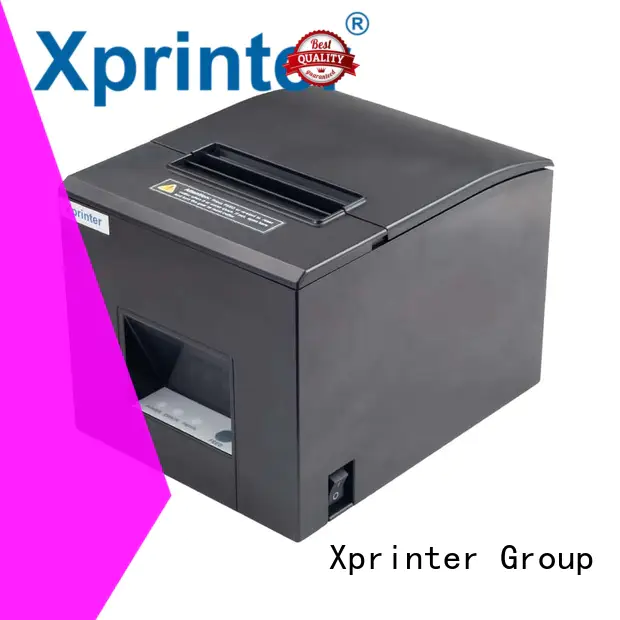
A thermal printer can handle a large number of transactions when it is properly maintained. Retail stores, restaurants, cafés, supermarkets, and service businesses often depend on receipt printers throughout the working day, making consistent performance essential for smooth operations.
An 80mm Thermal Printer can deliver reliable receipt printing with relatively simple upkeep, but regular maintenance should not be overlooked. Dust, paper residue, heat, and continuous use can gradually affect print quality and mechanical performance. A few basic maintenance practices can help reduce common problems and extend the printer’s service life.
Keep the Printer and Work Area Clean
Dust is one of the simplest but most common sources of printer problems. Particles can enter the paper compartment and accumulate around the print head or paper-feed mechanism.
Keep the area around the printer clean and free from excessive dust. Wipe the exterior regularly with a suitable soft, dry cloth, and follow the manufacturer’s instructions when cleaning internal components.
Clean the Thermal Print Head
The thermal print head is responsible for creating text and images on thermal paper. Residue or dust on its surface can lead to faded sections, uneven darkness, or missing characters.
Clean the print head at appropriate intervals based on usage. Always switch off the printer and allow the print head to cool before performing maintenance. Use only recommended cleaning materials and avoid abrasive objects that could damage the component.
Use High-Quality Compatible Paper
The type of thermal paper used can affect both print quality and printer performance. Paper that does not meet the printer’s recommended specifications may contribute to feeding problems or residue buildup.
Before purchasing paper in bulk, verify the required width, roll diameter, core size, and paper characteristics. Consistently using compatible paper can help maintain smooth operation.
Store Paper Properly
Thermal paper is sensitive to environmental conditions. Excessive heat, humidity, and direct sunlight can affect its coating and reduce print quality.
Store unused rolls in a cool, dry location and keep them protected from direct sunlight. Proper storage helps ensure that the paper performs as expected when installed in the printer.
Inspect the Paper Path
Paper dust and small fragments can accumulate along the path through which receipts travel. This buildup may cause uneven feeding, paper jams, or other printing issues.
Periodically inspect the paper compartment and paper path for debris. Remove visible particles carefully and follow the manufacturer’s recommended procedure for cleaning areas around the rollers.
Check the Paper Roll Installation
Incorrectly installed paper can cause printing problems even when the printer itself is functioning normally.
When replacing a roll, make sure it is positioned correctly and feeds from the appropriate direction. Confirm that the roll is properly seated and that the paper moves smoothly before closing the printer cover.
Monitor the Automatic Cutter
Many 80mm receipt printers include automatic cutters to separate receipts after printing. These mechanisms can accumulate small paper fragments over time.
If the cutter begins producing uneven cuts or fails to separate receipts properly, inspect it according to the manufacturer’s maintenance instructions. Never force a stuck cutter because doing so can damage its internal mechanism.
Check Cables and Connections
Connectivity problems can sometimes be mistaken for printer failures. Loose USB, Ethernet, serial, or other cables may cause intermittent communication between the printer and POS system.
Inspect connections periodically and make sure cables are securely positioned. Avoid placing cables where they can be repeatedly pulled, crushed, or sharply bent.
For network-connected printers, also check that the device remains properly connected to the business network.
Keep the Printer Properly Ventilated
Thermal printers generate heat during operation, especially when used continuously. Poor ventilation can increase operating temperatures and potentially affect performance.
Place the printer on a stable surface with sufficient space around ventilation areas. Keep it away from direct sunlight, heaters, and other equipment that produces significant heat.
Avoid Excessive Workloads
Every printer has an expected operating capacity. Businesses with high transaction volumes should check the manufacturer’s recommended duty cycle before placing continuous demands on the equipment.
If the printer shows signs of overheating, repeated errors, or inconsistent performance, allow it to cool when appropriate and investigate the cause. Operating a device beyond its recommended limits can contribute to premature wear.
Keep Drivers and POS Software Compatible
Printer maintenance also includes the software environment. Outdated or incompatible drivers can cause communication errors, formatting problems, or unexpected printing behavior.
Keep the printer driver and POS software properly configured. Before applying major software updates, verify that they remain compatible with the printer and its operating system.
Watch for Early Warning Signs
Small changes in printer behavior can provide an early indication of a developing problem. Pay attention to symptoms such as:
- Faded or uneven printing
- Frequent paper jams
- Unusual mechanical noises
- Receipts feeding at an angle
- Repeated cutter failures
- Intermittent connection problems
- Unexpected error messages
Addressing these symptoms early can prevent a minor issue from becoming a more serious operational problem.
Create a Routine Maintenance Schedule
A simple maintenance schedule makes it easier to keep equipment in good condition. The frequency should depend on how heavily the printer is used.
For example, employees can check paper supply and print quality daily, inspect the paper path regularly, and perform deeper cleaning according to the manufacturer’s recommendations. High-volume environments may require more frequent attention.
Know When to Seek Professional Service
Routine cleaning and basic troubleshooting can resolve many problems, but some issues require qualified technical support. Internal component failures, damaged print heads, persistent connectivity problems, or recurring mechanical faults should not be ignored.
If the printer continues to malfunction after basic troubleshooting, consult the manufacturer’s documentation or an authorized service provider rather than repeatedly attempting repairs without the appropriate tools or expertise.
Conclusion
Keeping an 80mm thermal printer running smoothly does not require complicated maintenance, but consistency is important. Clean the print head, use compatible thermal paper, inspect the paper path, maintain proper ventilation, and check connections regularly.
Businesses should also monitor early warning signs and follow the manufacturer’s maintenance recommendations. With proper care and timely attention to potential problems, a thermal printer can provide dependable receipt printing and support efficient daily operations for a longer period.